Read And Write Microsoft Excel Spreadsheets Using Jakarta POI
By Santosh Shanbhag, OCI Senior Software Engineer
March 2004
Introduction
The Jakarta POI project consists of APIs for manipulating various file formats based upon Microsoft's OLE 2 Compound Document format using pure Java. OLE 2 Compound Document Format based files include most Microsoft Office files such as XLS and DOC as well as MFC serialization API based file formats. The POI File System POIFS can be used to read a document written in OLE 2 Compound Document Format using Java as well as write such documents. POI provides several APIs to read and write Microsoft Excel (HSSF), Microsoft Word (HWPF), and OLE Property Sets (HPSF). However, to read and write Excel (XLS) files using Java, the HSSF (Horrible SpreadSheet Format!) API is sufficient. HSSF uses POIFS under the covers to perform some of its major tasks. HSSF creates spreadsheets in Microsoft Excel '97 (-2002) format.
This article provides an introduction on how to get started with the HSSF API. No prior knowledge other than an understanding of core Java is assumed.
The POI Way To Do It
The current POI release is at version 2.0. In order to start using HSSF you will need to include the poi-2.0-final-20040126.jar library in your classpath. The HSSF API consists of the following main packages:
| Package | Description |
|---|---|
org.apache.poi.hssf.usermodel |
Provides high level representation of common spreadsheet entities like workbook, sheet, row, cell, font, cell style, color pallete, data format, named ranges, etc. |
org.apache.poi.hssf.record |
Contains class representations for XLS binary strutures. |
org.apache.poi.hssf.record.aggregates |
Contains classes that manipulate collections of records as a single record. |
org.apache.poi.hssf.record.formula |
Contains classes to handle formulas used in a spreadsheet. |
org.apache.poi.hssf.eventusermodel |
Provides an event-based API for reading HSSF files. Intended for intermediate developers who might want to learn low-level API structures. |
org.apache.poi.hssf.dev |
Contains examples for how to use HSSF and tools for developing and validating HSSF. |
The HSSF API (and also the rest of the POI API) is so simple and easy to use that there is hardly any detailed explanation required. The Busy Developers' Guide To HSSF on the POI website (see references below) provides a ready reference to the most common tasks in reading and writing spreadsheets. At a very basic level, one must know the following relationship :
- A spreadsheet file consists of a workbook (
org.apache.poi.hssf.usermodel.HSSFWorkbook). - A workbook is composed of sheets (
org.apache.poi.hssf.usermodel.HSSFSheet) that can be referred to by their index (position within the workbook) or a specified name. - Sheets contain rows (
org.apache.poi.hssf.usermodel.HSSFRow). - Rows contain cells (
org.apache.poi.hssf.usermodel.HSSFCell) and cells contains values or formulaes. - Cells have a style (
org.apache.poi.hssf.usermodel.HSSFCellStyle) that determines how the cell is formatted and visually represented. Cells also contain border formatting.
Creating A Workbook
The starting point for creating a spreadsheet is to create an HSSFWorkbook. An HSSFWorkbook is a high-level container for all the elements of a spreadsheet just like the JFrame is a high-level container for all the gui components of a Swing application.
In order to create a new workbook and associate it with an output stream, use the following code:
- import java.io.*;
- import org.apache.poi.hssf.usermodel.HSSFWorkbook;
-
- ...
- ...
- HSSFWorkbook workbook = new HSSFWorkbook();
- ...
- ...
-
- FileOutputStream fout = new FileOutputStream("MyWorkbook.xls");
- // do not have to use FileOutputStream, any OutputStream will do
- wb.write(fout);
- fout.close();
- ...
In order to read an existing spreadsheet into a workbook, use the following code:
- import java.io.*;
- import org.apache.poi.hssf.usermodel.HSSFWorkbook;
-
- ...
- ...
- FileInputStream fis = new FileInputStream("MyWorkbook.xls");
- ...
- // do not have to use FileInputStream, any InputStream will do
- HSSFWorkbook workbook = new HSSFWorkbook(fis);
- ...
- fis.close();
Creating Sheets In The Workbook
The HSSFWorkbook provides methods to create sheets dynamically and automatically make it a part of the workbook. Duplicates of existing sheets can also be created as shown below:
- import org.apache.poi.hssf.usermodel.*;
-
- ...
- ...
- // create a sheet with name "Sheet One"
- HSSFSheet sheet1 = workbook.createSheet("Sheet One");
-
- // create a sheet with name "Sheet Two"
- HSSFSheet sheet2 = workbook.createSheet("Sheet Two");
- ...
- HSSFSheet sheet3 = workbook.createSheet();
-
- // we can change the name the name of the sheet anytime.
- workbook.setSheetName(2, "Sheet Three");
- ...
- ...
- // create a sheet in the workbook that contains the same data as the third
- // the name of sheet4 will be "Sheet Three (2)"
- HSSFSheet sheet4 = workbook.cloneSheet(2);
-
- ...
- ...
Creating Rows, Freeze Panes, and Split Panes In A Sheet
A sheet provides methods to create rows in the sheet. It also contains methods to create freeze panes and splitpanes.
Rows can be created in the sheet as shown below:
- ...
- ...
- // creates the first row in the sheet
- HSSFRow row1 = sheet.createRow((short) 0);
-
- // creates the second row in the sheet
- HSSFRow row2 = sheet.createRow((short) 1);
A freeze pane can be created as shown below:
- ...
- ...
- // horizontal position of the freeze pane
- int colSplit = 0;
-
- // vertical position of the freezepane
- int rowSplit = 0;
-
- // left column visible in right pane
- int leftmostColumn = 20;
-
- // top row visible in bottom pane
- int topRow = 20;
-
- // create a freeze pane from colSplit, rowSplit to leftmostColumn, topRow
- // colSplit and rowSplit indicate columns and rows you wish to split by
- // leftmostColumn and topRow indicate cells that are visible in the bottom right quadrant
- sheet.createFreezePane(colSplit, rowSplit, leftmostColumn, topRow);
- ...
When creating a split pane, the split area is divided into four separate work areas. A split is always specified by a pixel value and can be changed by a user by dragging it to a new position.
A split pane can be created as shown below:
- ...
- ...
- // x position of the split (1/20th of a point)
- int xSplitPos = 2000;
-
- // y position of the split (1/20th of a point)
- int ySplitPos = 2000;
-
- // left column visible in right pane
- int leftmostColumn = 10;
-
- // top row visible in bottom pane
- int topRow = 10;
-
- // the pane that currently has the focus
- int activePane = HSSFSheet.PANE_LOWER_LEFT;
-
- // create a split pane from xSplitPos, ySplitPos to leftmostColumn, topRow
- sheet.createSplitPane(xSplitPos, ySplitPos, leftmostColumn, topRow, activePane);
- ...
Rows can be shifted up or down in a sheet.
- ...
- ...
- int startRow = 101;
- int endRow = 120;
- int shiftValue = -10;
- // move 20 rows from (101 - 120) up 10 rows
- sheet.shiftRows(startRow, endRow, shiftValue);
- ...
The zoom factor is specified as a fraction of two numbers. Any two integers can be used as long as they are in the range of (1..65535) inclusive.
Sheets can be zoomed in and out.
- ...
- ...
- // zoom out to 90% (9 / 10)
- sheet.setZoom(9, 10);
- ...
- // zoom in to 125% (125 / 100)
- sheet.setZoom(125, 100);
- ...
Creating Cells For A Row
It is pretty straight-forward to create cells from an HSSFRow. You can also iterate through the cells of a row.
- ...
- ...
- // create a row
- HSSFRow row = sheet.createRow((short) 0);
-
- short col = 0;
-
- // create the first cell in the row.
- HSSFCell cell1 = row.createCell(col++);
-
- // create more cells
- HSSFCell cell2 = row.createCell(col++);
- HSSFCell cell3 = row.createCell(col++);
- HSSFCell cell4 = row.createCell(col++);
- ...
- // now iterate through the cells of a row
- Iterator iterator = row.cellIterator();
-
- while ( iterator.hasNext() ) {
- HSSFCell cell = (HSSFCell) iterator.next();
-
- // do something with the cell
- ...
- }
Setting the Cell Value
A cell value can be set to an int, double, boolean, String, Date, and Calendar.
- ...
- HSSFRow row = sheet.creatRow((short) 0);
-
- HSSFCell cell = row.createCell((short) 0);
-
- //**********************************
- //* Examples for setting cell value
- //**********************************
- // cell value is an integer
- cell.setCellValue(20);
-
- // cell value is a double
- cell.setCellValue(20.0);
-
- // cell value is a boolean
- cell.setCellValue(true);
-
- // cell value is a string
- cell.setCellValue("Hello");
-
- // cell value is a date
- cell.setCellValue(new Date());
- ...
Formatting A Cell To A Style
A cell can be styled using various parameters. You can set the font, fill color, and border for a cell. Also, you can format the value in a cell using a built-in format. The following code shows how:
- //***************************************
- //* Example for setting cell data format
- //***************************************
- // create a cell style
- // we should always create a new style from the workbook instead of modifying
- // the existing cell style object. Otherwise, it might affect other cells in
- // addition to this cell.
- HSSFCellStyle style = workbook.createCellStyle();
-
- // get one of the built-in formats. Several formats are defined in the HSSFDataFormat class.
- short dataFormatIndex = HSSFDataFormat.getBuiltinFormat("m/d/yy"));
-
- style.setDataFormat(dataFormatIndex);
-
- // now set the cell to the formatted style.
- cell.setCellStyle(style);
- ...
- //**********************************
- //* Example for setting cell font
- //**********************************
- // let's create a new font for the cell. Always use workbook to create a new font
- HSSFFont font = workbook.createFont();
- font.setFontHeightInPoints((short) 32);
- font.setFontName("Times New Roman");
- font.setItalic(true);
- //single underline
- font.setUnderline(HSSFFont.U_SINGLE);
- // make it bold
- font.setBoldWeight(HSSFFont.BOLDWEIGHT_BOLD);
-
- style.setFont(font);
- ...
- //******************************************************
- //* Example for setting cell borders and border colors
- //******************************************************
- style.setBorderBottom(HSSFCellStyle.BORDER_THIN);
- style.setBottomBorderColor(HSSFColor.RED.index);
-
- style.setBorderLeft(HSSFCellStyle.BORDER_MEDIUM);
- style.setLeftBorderColor(HSSFColor.ORANGE.index);
-
- style.setBorderRight(HSSFCellStyle.BORDER_DASHED);
- style.setRightBorderColor(HSSFColor.YELLOW.index);
-
- style.setBorderTop(HSSFCellStyle.BORDER_HAIR);
- style.setTopBorderColor(HSSFColor.AQUA.index);
- ...
- //****************************************************************
- //* Example for setting cell fill color using a pre-defined color
- //****************************************************************
- // choose from several colors defined in the HSSFColor class
- style.setFillBackgroundColor(HSSFColor.RED.index);
-
- // choose from several fill patterns: SOLID_FOREGROUND, FINE_DOTS,SQUARES
- // DIAMONDS, etc, defined in the HSSFCellStyle class
- style.setFillPattern(HSSFCellStyle.BRICKS);
-
- //****************************************************************
- //* Example for setting cell fill color by defining a custom color
- //****************************************************************
- byte redValue = (byte) 50;
- byte greenValue = (byte) 100;
- byte blueValue = (byte) 150;
-
-
- // choose a seed color index
- short colorIndex = HSSFColor.RED.index + 1;
-
- // get the workbook custom pallete and set the color at the seed index to
- // the custom color
- HSSFPalette palette = workbook.getCustomPalette();
- pallete.setColorAtIndex(colorIndex, redValue, greenValue, blueValue);
-
- // set the cell style to that fill color index
- style.setFillForegroundColor(colorIndex);
Setting A Formula Inside A Cell
You can use any built-in function or operator as a formula string. HSSF provides a FormulaParser class (in the package org.jakarta.poi.hssf.model) that parses the formula set in the cell.
- ...
- cell.setCellFormula("SUM(B10..G10)");
- ...
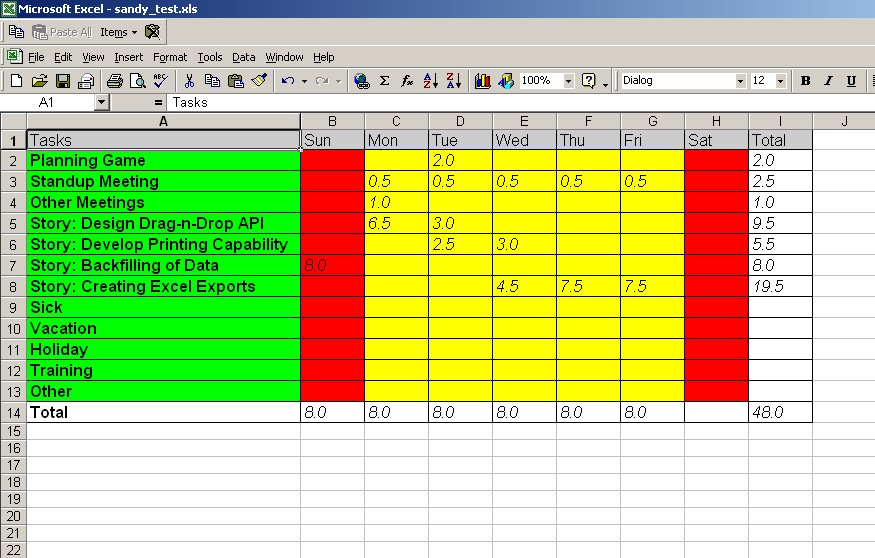
Creating An Excel Spreadsheet From A Swing JTable
A JTable organizes its data in cells just as a spreadsheet does and hence it provides a classic example for migrating data from a JTable to a spreadsheet. Here's the code that shows how to do it:
Exporting a JTable to a spreadsheet
- // call this method to export a JTable to an HSSFSheet
- public void exportTableToSheet(JTable table, HSSFSheet sheet) {
- int rowCount = table.getRowCount();
- int colCount = table.getColumnCount();
- int currentSheetRow = 0;
-
- for (int tableRowIndex = 0; tableRowIndex < rowCount; tableRowIndex++) {
-
- for (int tableColIndex = 0; tableColIndex < colCount; tableColIndex++) {
-
- // create and format the cell in the spreadsheet
- createAndFormatCell(table, tableRowIndex, tableColIndex, sheet, currentSheetRow);
-
- }
- currentSheetRow++;
- }
- }
-
-
- private void createAndFormatCell(JTable table, int tableRowIndex, int tableColIndex,
- HSSFSheet sheet, int currentSheetRow) {
-
- // get the cell value from the table
- Object cellValue = table.getValueAt(tableRowIndex, tableColIndex);
-
- // create the cell
- HSSFCell cell = createHSSFCell(sheet, cellValue, currentSheetRow, tableColIndex);
-
- // get the renderer component that renders the cell
- TableCellRenderer renderer = table.getCellRenderer(tableRowIndex, tableColIndex);
- Component rendererComponent = renderer.getTableCellRendererComponent(table,
- cellValue,
- false,
- false,
- tableRowIndex,
- tableColIndex);
-
-
- if (rendererComponent instanceof JLabel) {
- // if it is a JLabel, get the label text which is the actual formatted displayed text
- // and not the raw cell value
- JLabel label = (JLabel) rendererComponent;
- cellValue = label.getText();
- }
-
- formatCell(cell, rendererComponent);
- }
-
-
- private HSSFCell createHSSFCell(HSSFSheet sheet, Object value, int row, int col) {
- // create row if not yet created
- HSSFRow hssfRow = sheet.getRow(row);
- hssfRow = (hssfRow == null) ? sheet.createRow(row) : hssfRow;
-
- // create cell if not yet created
- HSSFCell cell = hssfRow.getCell((short) col);
- cell = (cell == null) ? hssfRow.createCell((short) col) : cell;
-
- // set the cell value
- String cellValue = (value == null) ? "" : value.toString();
- cell.setCellValue(cellValue);
- return cell;
- }
-
-
- public void formatCell(HSSFCell cell, Component rendererComponent) {
-
- // create a style
- HSSFCellStyle cellStyle = workbook.createCellStyle();
-
- // set the cell color
- cellStyle.setFillPattern(HSSFCellStyle.SOLID_FOREGROUND);
- Color color = rendererComponent.getBackground();
- HSSFPalette palette = workbook.getCustomPalette();
-
- // maintain(increment after each use) unused color index as an instance variable
- short someUnusedColorIndex = 10;
- palette.setColorAtIndex(someUnusedColorIndex, (byte) color.getRed(),
- (byte) color.getGreen(), (byte) color.getBlue());
- cellStyle.setFillForegroundColor(someUnusedColorIndex);
-
-
- // set the font
- Font font = rendererComponent.getFont();
- HSSFFont hssfFont = createHSSFFont(font);
- cellStyle.setFont(hssfFont);
-
- // set the border
- cellStyle.setBorderTop(HSSFCellStyle.BORDER_THIN);
- cellStyle.setBorderBottom(HSSFCellStyle.BORDER_THIN);
- cellStyle.setBorderLeft(HSSFCellStyle.BORDER_THIN);
- cellStyle.setBorderRight(HSSFCellStyle.BORDER_THIN);
-
-
- // don't forget to set the cell style!
- cell.setCellStyle(cellStyle);
- }
-
-
- private HSSFFont createHSSFFont(Font font) {
- HSSFFont hssfFont = workbook.createFont();
- hssfFont.setFontName(font.getName());
- hssfFont.setItalic(font.isItalic());
- hssfFont.setBoldweight(font.isBold() ? HSSFFont.BOLDWEIGHT_BOLD
- : HSSFFont.BOLDWEIGHT_NORMAL);
- hssfFont.setFontHeightInPoints((short) font.getSize());
- hssfFont.setUnderline(HSSFFont.U_NONE);
-
- return hssfFont;
- }
|
Figure 1. An example |
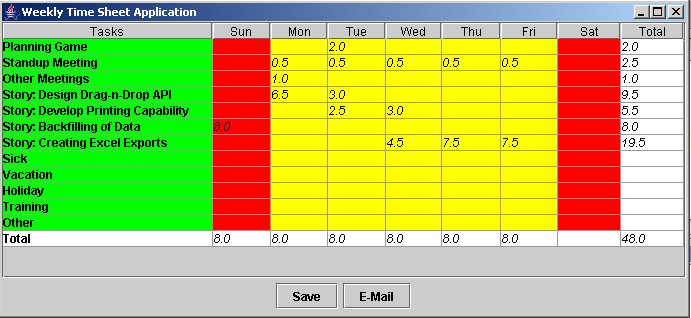
Figure 2. Microsoft Excel spreadsheet created from JTable
Summary
Jakarta POI's HSSF provides a sophisticated and easy-to-use API to read and write Microsoft Excel files. This article provides a beginner's guide to start using the HSSF API quickly. An example use of HSSF is in acceptance testing, where users are comfortable specifying input data and expected output data in Excel format instead of XML or flat files. HSSF can be used to read the input data, pre-populate the database with the data, run the application against the data and then test the actual results with the expected results specified in the spreadsheet. This gives the users the flexibility to specify the application requirements as well as provide acceptance test data in Excel. The developers can use the spreadsheet to write the tests at the application level. HSSF makes life easier in such test-driven environments. And, of course, HSSF can be used in applications that need to read and write Excel spreadsheets using Java.
References
-
[1] Jakarta POI Project Home Page
http://jakarta.apache.org/poi - [2] Busy Developers' Guide to HSSF Features
http://jakarta.apache.org/poi/hssf/quick-guide.html
Software Engineering Tech Trends (SETT) is a regular publication featuring emerging trends in software engineering.
